Digital Extras

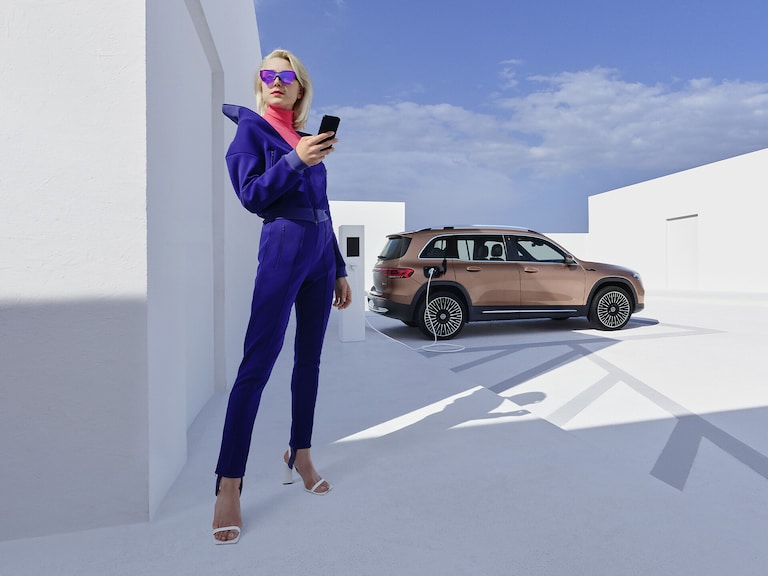
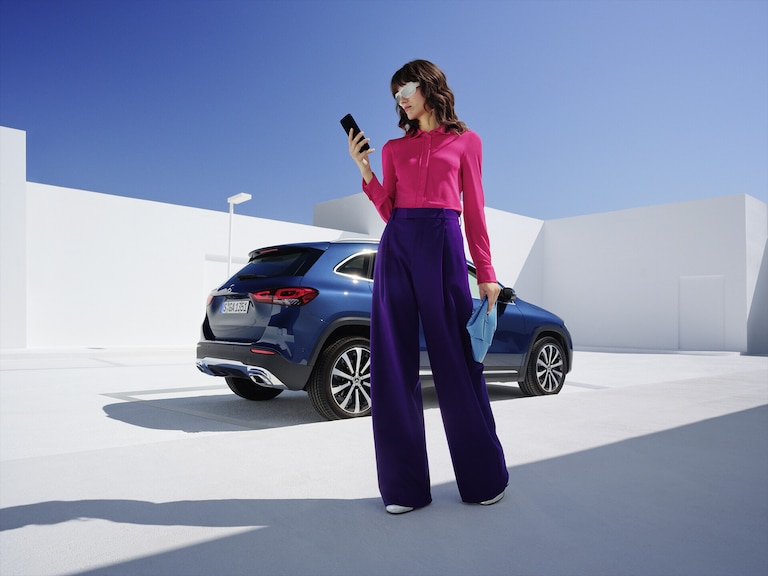
Digital Extras for your Mercedes-Benz.
Simply book additional Digital Extras and experience your Mercedes-Benz in a new way.
Standard Equipment Digital Extras
Standard Equipment Digital Extras. Included in your Mercedes-Benz.
Digital Extras Packages
Digital Extras Packages. Benefits for you.
How to book Digital Extras – this is how it works.
Log in or register with your Mercedes me ID to experience our Digital Extras. Your personal Mercedes me ID is the key to the digital world of Mercedes-Benz and offers even more benefits beyond:
- Manage your vehicle and experience the world of Digital Services
- Receive personalized recommendations
- Edit your personal data and preferences
- Manage appointments at our Mercedes-Benz dealers
Mercedes-Benz Apps: Making the most of Digital Extras.

FAQ
Do you still have questions about Digital Extras?
How do I register for Mercedes-Benz Digital Extras?
Back
To use Mercedes-Benz Digital Extras, you first need a Mercedes me ID. To register for Mercedes-Benz Digital Extras, please follow these steps:
Download the Mercedes-Benz App from the App Store or Google Play.
Enter your telephone number or email address and tap "Next".
Complete your personal information.
Read the Terms of Use and tick the box to accept them.
Tap on "Register".
Enter the verification code sent to your smartphone or email address to complete the registration process.
To use Mercedes-Benz Digital Extras, you first need a Mercedes me ID. To register for Mercedes-Benz Digital Extras, please follow these steps:
Download the Mercedes-Benz App from the App Store or Google Play.
Enter your telephone number or email address and tap "Next".
Complete your personal information.
Read the Terms of Use and tick the box to accept them.
Tap on "Register".
Enter the verification code sent to your smartphone or email address to complete the registration process.
How do I activate my Digital Extras?
Back
Login to the Customer profile (customer login) on Mercedes-Benz website using the user symbol at the top right of the screen.
Click on the user symbol again and select the entry "My Dashboard".
On this page you will see the entry "Manage my digital extras" select this to get to the overview of your Digital Extras.
Here you can either activate all purchased and free of charge Digital Extras with one click by clicking on "Deactivate/activate all subsequent digital extras", or activate the digital extras individually.
Please note that activation of some Digital Extras may require you to provide additional information. If this is the case, you will be automatically informed.
Activation of security-related digital extras, such as remote locking and unlocking, opening windows and sunroof or certain location services, requires verification of your identity. You can currently only carry out this identity check in your Mercedes-Benz App or at your dealership.
Make sure your vehicle is in an area with network connectivity. This is a necessary requirement for the successful activation and deactivation of your Digital Extras.
Login to the Customer profile (customer login) on Mercedes-Benz website using the user symbol at the top right of the screen.
Click on the user symbol again and select the entry "My Dashboard".
On this page you will see the entry "Manage my digital extras" select this to get to the overview of your Digital Extras.
Here you can either activate all purchased digital extras with one click by clicking on "Deactivate/activate all subsequent digital extras", or activate the digital extras individually.
Please note that activation of some Digital Extras may require you to provide additional information. If this is the case, you will be automatically informed.
Activation of security-related digital extras, such as remote locking and unlocking, opening windows and sunroof or certain location services, requires verification of your identity. You can currently only carry out this identity check in your Mercedes-Benz App or at your dealership.
Do I have to buy Digital Extras or are they free?
Back
Some Digital Extras come with your vehicle, you don't have to buy them. To benefit from additional services however, a purchase is necessary here.
These are some of our most popular services:
• Remote Retrieval of Vehicle Status
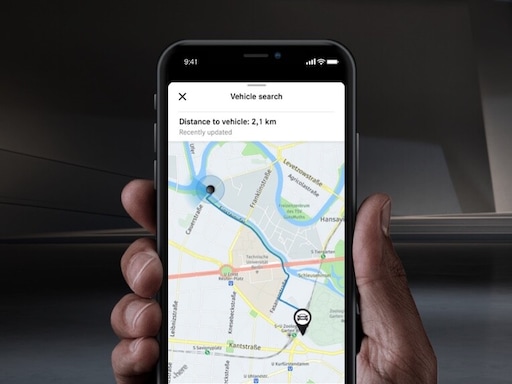
• Vehicle Tracker
• Parked Vehicle Locator
• Remote Engine Start
• Live Traffic Information
• Send2Car
The following services are included free of charge:
• Maintenance Management
• Accident Recovery and Breakdown Management
• Telediagnosis
• Remote Vehicle Diagnostics
• Intelligent Status & Service
To purchase a Digital Extra, please follow these steps:
1. Download the Mercedes-Benz App.
2. Open the app on your smartphone.
3. Select a product from the list and tap "Add to basket".
4. Tap on "Go to basket" to proceed to the checkout.
5. Tap on "Order now" and select a means of payment.
6. To complete your order, tap on "Buy now".
To discover and purchase all available services, please visit the Mercedes-Benz Store online or download the Mercedes-Benz Store App and log in with your Mercedes me ID.
iOS
Android
Some Digital Extras come with your vehicle, you don't have to buy them. To benefit from additional services however, a purchase is necessary here.
These are some of our most popular services:
• Remote Retrieval of Vehicle Status
• Vehicle Tracker
• Parked Vehicle Locator
• Remote Engine Start
• Live Traffic Information
• Send2Car
The following services are included free of charge:
• Maintenance Management
• Accident Recovery and Breakdown Management
• Telediagnostics
• Remote Vehicle Diagnostics
To purchase a Digital Extra, please follow these steps:
1. Download the Mercedes-Benz App.
2. Open the app on your smartphone.
3. Select a product from the list and tap "Add to basket".
4. Tap on "Go to basket" to proceed to the checkout.
5. Tap on "Order now" and select a means of payment.
6. To complete your order, tap on "Buy now".
To discover and purchase all available services, please visit the Mercedes-Benz Store online or download the Mercedes-Benz Store App and log in with your Mercedes me ID.
How can I renew or purchase Digital Extras that are about to expire?
Back
There are two ways to renew services or purchase new services:
You will receive a reminder by email 2 weeks before the end of the term. Simply follow the link in the email to renew your services.
You can purchase new services and extend terms at any time in the Mercedes-Benz Store App. These are automatically appended to your current terms.
Please follow these steps to renew or purchase services that are expiring:
1. Open Mercedes-Benz Store.
2. Tap "Renew" in the menu.
3. Select your desired term.
4. Tap on "Order now".
5. Tap on "Buy now" to complete your order.
iOS
Android
There are two ways to renew services or purchase new services:
• You will receive a reminder by email 2 weeks before the end of the term. Simply follow the link in the email to renew your services.
• You can purchase new services and extend terms at any time in the Mercedes-Benz Store App. These are automatically appended to your current terms.
Please follow these steps to renew or purchase services that are expiring:
1. Open Mercedes-Benz Store.
2. Tap "Renew" in the menu.
3. Select your desired term.
4. Tap on "Order now".
5. Tap on "Buy now" to complete your order.
How do I lock and unlock my vehicle using the Mercedes-Benz App?
Back
1. Open the Mercedes-Benz App.
2. Select "Lock status".
3. Check the lock status at the top of the screen to see if the doors are locked or open.
4. Tap the button to lock or unlock the doors.
5. Enter your four-digit PIN to confirm or use Face ID.
Please follow these steps to lock and unlock the vehicle doors using the Mercedes-Benz App:
1. Open the Mercedes-Benz App.
2. Select "Lock status".
3. Check the lock status at the top of the screen to see if the doors are locked or open.
4. Tap the button to lock or unlock the doors.
5. Enter your four-digit PIN to confirm or use Face ID.
Can I search for a missing or stolen car using Stolen Vehicle Help?
Back
The service can be purchased as part of the GUARD 360˚ Package in the Mercedes-Benz Store. Please be sure to activate Stolen Vehicle Help as soon as you receive your vehicle. The benefit of this service can only be claimed 30 days after purchase (waiting period). Vehicles that are already untraceable prior to the purchase of this service or during the waiting period are not covered by the benefit of this service. Please also note your individual insurance conditions, which apply independently of this service.
To activate Stolen Vehicle Help:
1. Open the Mercedes-Benz App.
2. Go to "Settings".
3. Tap on "Manage services".
4. Scroll down to "Stolen Vehicle Help".
5. Tap the button to activate the service.
To use Stolen Vehicle Help:
1. Open the Mercedes-Benz App.
2. Tap on "More" and select "Stolen Vehicle Help".
3. Confirm your details.
4. Report the theft to the police.
5. Contact the security centre of our authorised service partner.
Once you have successfully launched Stolen Vehicle Help, our service partner will transmit the location data to the police. From this point on, the real-time location of your vehicle is shared with the police. You have no insight into the location of your vehicle during the search process.
Activate the "Stolen Vehicle Help" service in the Mercedes-Benz App to be able to find your vehicle in the event of theft or loss. After activation, this service can help to speed up the investigation by police.
The service can be purchased as part of the GUARD 360˚ Package in the Mercedes-Benz Store. Please be sure to activate Stolen Vehicle Help as soon as you receive your vehicle. The benefit of this service can only be claimed 30 days after purchase (waiting period). Vehicles that are already untraceable prior to the purchase of this service or during the waiting period are not covered by the benefit of this service. Please also note your individual insurance conditions, which apply independently of this service.
To activate Stolen Vehicle Help:
1. Open the Mercedes-Benz App.
2. Go to "Settings".
3. Tap on "Manage services".
4. Scroll down to "Stolen Vehicle Help".
5. Tap the button to activate the service.
To use Stolen Vehicle Help:
1. Open the Mercedes-Benz App.
2. Tap on "More" and select "Stolen Vehicle Help".
3. Confirm your details.
4. Report the theft to the police.
5. Contact the security centre of our authorised service partner.
Once you have successfully launched Stolen Vehicle Help, our service partner will transmit the location data to the police. From this point on, the real-time location of your vehicle is shared with the police. You have no insight into the location of your vehicle during the search process.
How do I send an address to my vehicle with Send2Car?
Back
Please follow these steps to send a destination to your vehicle:
1. Open the Mercedes-Benz App.
2. Tap on "Your location".
3. Select your destination by searching for a city or address.
4. Tap on "Route".
5. Tap on "Send address to vehicle".
With Send2Car, you can send an address directly to your vehicle using the Mercedes-Benz App. Once you have confirmed the destination, your navigation system will take you there.
Please follow these steps to send a destination to your vehicle:
1. Open the Mercedes-Benz App.
2. Tap on "Your location".
3. Select your destination by searching for a city or address.
4. Tap on "Route".
5. Tap on "Send address to vehicle".
Availability of Digital Extras at a glance
Back
FAQ